.png)

SprintAI User Manual
This page provides guidelines for collecting and uploading video data for various sprints and runs over a 10-meter distance using SprintAI.
Within this page, you will find information on how to utilise the Mobile App (Forcetek Cam) and the Web Portal (www.sprintai.forceteck.com), as well as a video tutorial.
DATA COLLECTION TUTORIAL
01
Camera Positioning and Field of View

A single camera is used to capture the 0-10m section of the run. The camera will need to be positioned at 5m from the start for the acceleration phase and at 35m for the max speed (30-40m) section of the run. The single camera needs to be set up about 12m (10 m in minimum distance if you do not have enough space) away from the track to allow a wide enough view to record multiple steps.
The use of saucer 'mini' cones is allowed but NOT compulsory. You can collect data without using any cone.
The camera must be perpendicular to the sprint track to allow 2D sagittal plane measurement. The camera set up should not be changed throughout and across data collections to allow consistency of footage. This is important for any longitudinal analysis you want to do.
You can use our solution with AND without the use of cones.


1. Ensure the athlete’s sprinting path remains within the vertical bounds of the screen (i.e., between the top and bottom edges) throughout the recording. Ideally, the athlete should be as close to the vertical center of the screen as possible.
2. Position the camera so it is level with the plane of motion. Use background objects (e.g., lines, fences, or other fixed features) that follow the athlete’s sprinting path as visual guides. Alternatively, place a line of cones along the sprinting path and adjust the camera so its borders are parallel with the cones or background objects.
3. Ensure the athlete is positioned in the center of the screen when they reach the midpoint of their sprint. Frame your shot so that the midpoint of the sprint path aligns with the center of the camera’s field of view.
02
Camera Settings (if not using the Forceteck Cam App)
If you are not using the Forceteck App, you will need to record the videos with the following settings.
-
Sampling Frequency: 240 Hz - we support also 120 Hz but 240 Hz is preferable
-
Resolution: 1920 p x 1080p
To record videos at this sampling frequency and resolution, you will typically need to use the slow-motion video setting.
Please note: A minimum sampling frequency of 120hz is required for a successful data analysis.


03
Using the Forceteck Cam
Enter your credentials (username and password), which are the same ones that you use to log in on the web-app.
Next step is to create a session. You can do that by clicking on the folder icon on the bottom right, and then input key parameter including the name, description, and potentially schedule time (feature not currently enabled).
Then a session can be created in 3 steps as shown below:


Now, enter in the newly created session, and click on the red camera icon to start the acquisition.
You will be then asked to set some parameters, which are:
1. Direction of travel: the direction of the athletes is running when looking at the video you are collecting. You have 3 options here:
a. L2R – Left to Right
b. R2L – Right to Left
c. Leave it on ‘AUTO’ for auto detection.
2. Number of Runs: please add the number of runs, which is made up b the amount of player that run in that session times the number of reps for each player. Alternatively you could leave it to ‘AUTO’ if you do not know such number


The subsequent step involves uploading the session, which will eventually resemble the figure on the left once fully uploaded.
It’s good practice to start and end each session with the app recording 10 seconds of empty video.
Then, ask the athlete to enter the field of view. This gives enough time to correctly clip any video after data collection.

04
UPLOAD
Once you have recorded the video you have few options on how to upload the videos:
1. OPTION 1 – DIRECT UPLOAD FROM FORCETECK CAM iOS APP
2. OPTION 2 - DELAYED UPLOAD FROM FORCETECK CAM iOS APP
3. OPTION 3 - UPLOAD FROM CAMERAL ROLL ON FORCETECK CAM iOS APP
OPTION 1 -
DIRECT UPLOAD FROM FORCETECK CAM iOS APP
This is the preferred option as it maximises automation.
In this scenario, we assume that Wi-Fi is available immediately after data collection. In this case, immediately after data collection, click on the blue icon at the bottom right to initiate the upload.
Allow a few seconds, and a progress bar will be displayed.


Once the download is completed, the video is automatically STORED in the camera roll AND uploaded on the web-app.
Warning: If you do not upload the video immediately, possibly due to the absence of Wi-Fi, you may encounter the following issue: the upload icon will be greyed out when you attempt to upload it again.
This occurs because Apple iOS may store the video within the app for a limited period, as it strives to optimise device memory as soon as possible. In such instances, you can initiate a new session and follow the instructions below.


If all operations are successful, the session will be fully coloured (see pic on the right!), indicating that the video has been successfully uploaded to the cloud.
OPTION 2 -
DELAYED UPLOAD FROM FORCETECK CAM iOS APP

In this scenario, we assume that Wi-Fi is not available. Here’s what you should do:
1. Wait to press the blue button until you return to a location with Wi-Fi access.
2. Once you have established a Wi-Fi connection, upload the video as previously outlined.

OPTION 3 -
UPLOAD FROM CAMERAL ROLL ON FORCETECK CAM iOS APP
In the event of a video upload failure, you have the option to re-upload the saved video from the camera roll.
However, it is important to note that if you are using an iPhone, Apple enforces a change in the frame rate at the beginning and end of the video. Consequently, the video will include a speed increase at the start and end.
The avoid issues in the data analysis, before uploading the video onto the Forceteck Cam app, we are asking you to open the video in the Camera Roll, and got to settings -see on the right:


At this point, you should have observed the presence of two bars positioned at the bottom of the video. Your attention should be directed towards the bar at the very bottom, which is characterised by a series of vertical lines.
The proximity or separation of these lines indicates the occurrence of a speed change within the video.
Your objective is to eliminate this speed change by ‘stretching’ the black dashed line at the start and end of the video, thereby transforming the entire video into slow motion.
If you do it only once, at the end of the video, the bar will look like the epic on the left here.
You must do this for both ends of the video.


Once you have completed the video editing process for both ends of the video, the bar should resemble the one shown in the image on the left.
At this point, proceed to the top right icon labelled “DONE” and subsequently return to the Forceteck Cam App.
Please check in the Camera Roll that the video is in full slow motion.
(1) - You have successfully returned to the Forceteck Cam application.
To upload a session, locate the session you wish to upload or create a new one using the icon with the plus sing in it.
(2) - Identify the blue icon that contains a white document and a blue camera icon. Click on this icon to open the Camera Roll.
Within the Camera Roll, select the video you have processed among the other videos and photos.
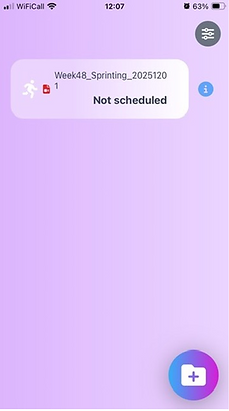


The session view will appear again as shown here below.


The advantage of this approach is that it enables you to input the correct number of videos and direction by reviewing the camera roll before uploading.
Once the upload is complete, you can click on the upload video button (blue icon located in the bottom right corner) and follow the same steps.
The video will be automatically trimmed and will be accessible within the web application.
❌ 8 things to avoid when collecting sprinting data ❌
1.Posters or signage with humans in the backgroundThese can confuse pose estimation models by mimicking body outlines.
2.People walking or running in the background — especially across the trackAvoid both near-side and far-side movement across the runner’s path.
3.Multiple people in the background (e.g., staff, teammates, spectators)Additional bodies can interfere with detection and joint tracking.
4.Shadows cast on the athlete (e.g., from nearby trees, buildings, or people)Uneven lighting impacts body segmentation and landmark detection.
5.Reflective surfaces (windows, mirrors, shiny floors)These can create ghost poses or confuse keypoint estimators.
6.Extreme lighting conditions (overexposed or too dark)Balanced lighting ensures all joints are visible and consistently tracked.
7.Recording from a non-perpendicular angleAvoid diagonal or frontal angles unless explicitly needed — side-on (90°) is ideal for sprinting.
8.Cluttered backgrounds with similar colours or shapes to the athlete’s clothingUse high-contrast clothing (e.g., avoid black gear against a dark background and white gear against a white background).

04
Using the Web Portal
This is a quick start up guide to use the SprintAI web-app:
1. Log-in: Please use the username and password provided to log in onto https://sprintai.forceteck.com/.
Please remember that these very same credentials are used for the mobile app as well.
Upon your initial login, and once a month thereafter, you will be prompted to verify your email address for security purposes.

2. Athlete List: Please check under SETTINGS – MODIFY ATHLETES If you have all the athletes in your team who performed a sprint during the sessions you want to analyse.

3. ATHLETE CREATION:
If you only need to add a limited number of athletes, you can simply select the ‘PLUS’ button and provide the same information (including a photograph if desired).
If you require the addition of a substantial number of athletes, we recommend clicking on the ‘CSV Upload’ option.
Subsequently, download the ‘example-athlete-list.csv’ file and populate it by adding the athlete’s name, surname, height in metres (please ensure that measurements are in metres), and weight in kilograms.

4. SESSION UPLOAD:
a. If you utilised the Forceteck Cam App, you should find all previously trimmed sessions under the VIDEO PREPARATION – Monitor-In Progress Session category.
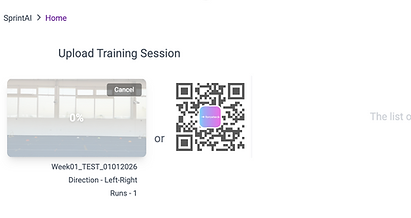
b. If you wish to upload a video you have collected using other devices or previously collected, please click on ‘UPLOAD TRAINING SESSION’ and provide the necessary information. If you are aware of the anticipated number of runs included in your video, the frame per seconds (fps), and/or the direction of travel (e.g., left to right or right to left), please add this information, as it assists the trimming algorithm.

A suggested session name should include the ‘Week Number’ (typically related to your season schedule), session type (e.g., acceleration, MAX V, or any other relevant information), and date. The frame per second (FPS) is crucial for providing information regarding the sampling frequency employed during video collection.
If you utilised the application, the sampling frequency should be automatically detected as 240 frames per second (fps). Conversely, when uploading previously recorded videos, it is essential to include this information for accurate analysis.It is important to note that SprintAI is optimised to function effectively with slow-motion videos, utilising either 240 fps or 120 fps, while 60 Hz and 30 Hz videos may compromise the accuracy of the metrics calculation, and required subsequent manual analyses.
c. Once uploaded, the video will move into ‘TRIMMING QUEQUED’, and then ‘TRIMMING’.
This means the video is being trimmed automatically. Once the process is over, the video will be ready for assignment and shown as ‘TRIMMED’.

5. ATHLETE ASSIGNMENT:
The last step before launching the PROCESSING, is to assign an athlete to a specific run that has been trimmed.
a. Click on the TRIMMED video and check who is the player in the video;
b. Select the athlete by clicking on the round icon. If there is a trimmed video of a single run that does not include any athlete or usable material or you do not wish to assign that run for any reason, simply do not assign it to any athlete.
c. Once finished, click COMPLETE and the process will start automatically.

6. DATA ANALYSIS:
All metrics and analyses are available under the results overview page.
a. ATHLETES: In this view, you can obtain a “SQUAD SNAPSHOT” displaying the average Forceteck and Custom scores for each player, for the last 5 runs.
Additionally, this view allows you to:
-
SORT the leaderboard by different metric
-
MONITOR changes in velocity trends for acceleration and maximum velocity trials.


By clicking on an athlete icon, you can subsequently customise a dashboard to monitor the athlete’s performance over time, across multiple runs and metrics.
b. TRAINING SESSION:
This view enables you to access all the sessions you have collected, providing information regarding the week of collection and the number of athletes participating in each session.

7.COMPARE:
The final section that enables more advanced data analysis.
a. RUN COMPARISON: Here, you can compare a single run with a step-by-step analysis of all metrics. This function enables you to compare runs from the same player or different players.

b. WEEKLY COMPARISON:
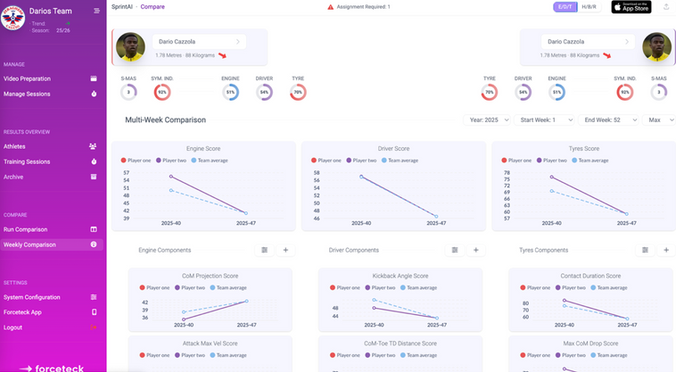
On this page, you can create historical analyses and evaluate changes in athletes’ performance across multiple weeks. You can also compare this performance against the team average.